Cipher Label needs to have a service configured for the Cipher instance that was defined under the “Configure Cipher Profile Options” setup. Once the service is defined and started it will connect via sshfs to the EBS server through the OS service user account that was created and monitor the directory for label XML files.
If you have not performed the other steps under the EBS Asynchronous Setup, please stop and finish those steps before proceeding.
Perform the following steps to configure Cipher Label to connect to the EBS output directory.
- Log into the Cipher Application with the skipjack user or a user assigned the Full Admin role or another Role with the Manage Services and Control Services permissions.
- Once you log in to Cipher you will need to select an instance. Select the instance that you configured in the “Setup Cipher Profile Options” setup.
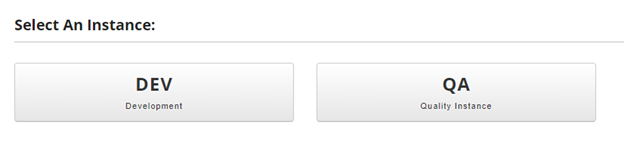
You can also select the right instance at any time from the upper left-hand corner drop down.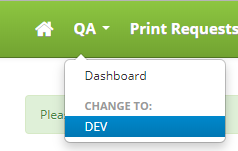
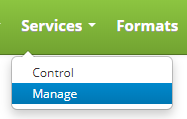
- Once you have selected an instance, click on the Services menu and select Manage.
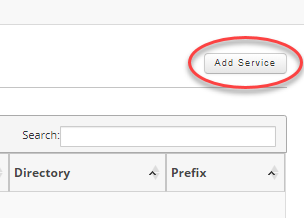
- Click on the “Add Service” button on the upper left hand of the Services screen.
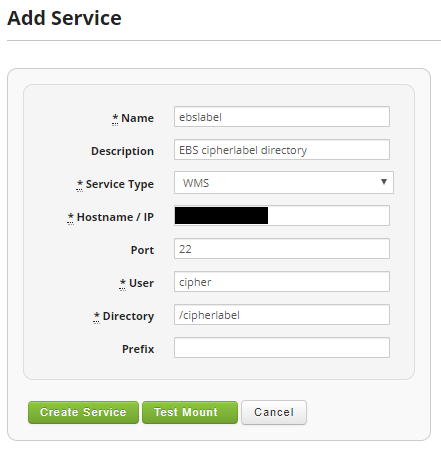
- On the “Add Service” page fill out the following fields to setup the connection to the EBS server label output directory.
- Name: The name of the service. Must be 10 characters and it cannot include spaces.
- Description: Give a description of the service. This is optional.
- Service Type: WMS
- Hostname / IP: The hostname or the IP address of the EBS server hosting the label output directory.
- Port: 22 unless your SSH port on the EBS server is different.
- User: The EBS OS service user account name.
- Directory: The full path to the label output directory on the EBS server.
- Prefix: The label prefix that was defined in the Configure WMS Profile Options for Asynchronous Operations setup. This is optional.
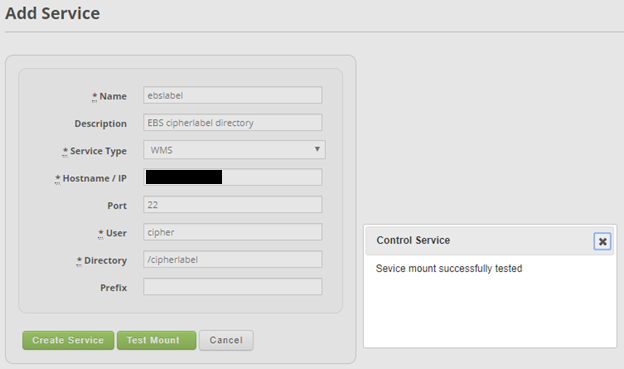
- Once the service information has been filled in, click on the “Test Mount” button to test the sshfs mount. If successful you should see a message as follows.
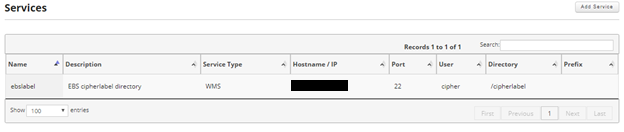
- Click on the “Create Service” button to save the service.
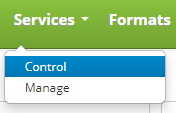
- Now that the service has been successfully created, the service needs to be started. Click on the Services menu and click on Control.
- Once on the “Control Services” screen, check the checkbox next to the service you just created and click the “Start Selected” button.
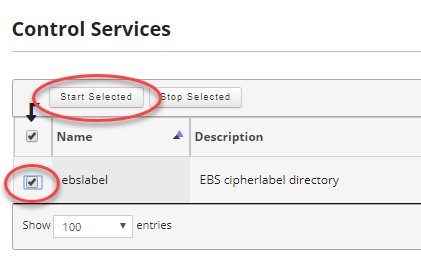
Alternatively, you can hold your mouse over the record and a start button will appear at the far right. You can click on start to start the service.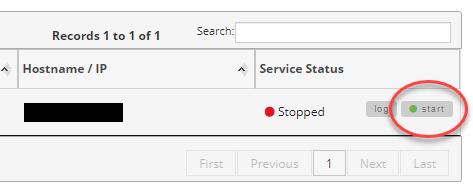
- Once the service is running you will see the Service Status change to Running.
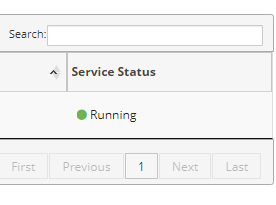
At this point Cipher Label will continually check the EBS output label directory for new labels to process.