A label format defines the page size of the label, the layout of the label, and the printers with which the label can be printed. The label format is similar to a template. Two types of objects are defined on each label: static objects that are not substituted with data and dynamic fields with data specific to each transaction or print request. Examples of static objects on label format files are logos, lines, or text that will not be dynamically substituted with data during a print request. Static objects are the same on each label for every print request.
Dynamic fields can be considered placeholders. The placeholder defines where on the label the data will print, the size of the field, and the bar code symbology if it is a bar code field. Dynamic fields are substituted with data each time a print request is created. Examples of dynamic fields are bar code fields, text fields, and graphic fields. Each field that will be substituted dynamically with data must be named in BarTender using the naming conventions outline below.
To get started in bartender you must first setup the function on which you will create the .fmt file for Cipher.
Bartender Navigation: Administer > Printer Code Template Setup
1. Create a blank label format

2. Select the blank box under the Printer Systems frame.
3. Enter the name Cipher under the Name field
4. For the properties Start Field Delimiter and End Field Delimiter enter the delimiter you will be using for your dynamic fields. NOTE: both delimiters must be the same.
5. Select the Output tab.
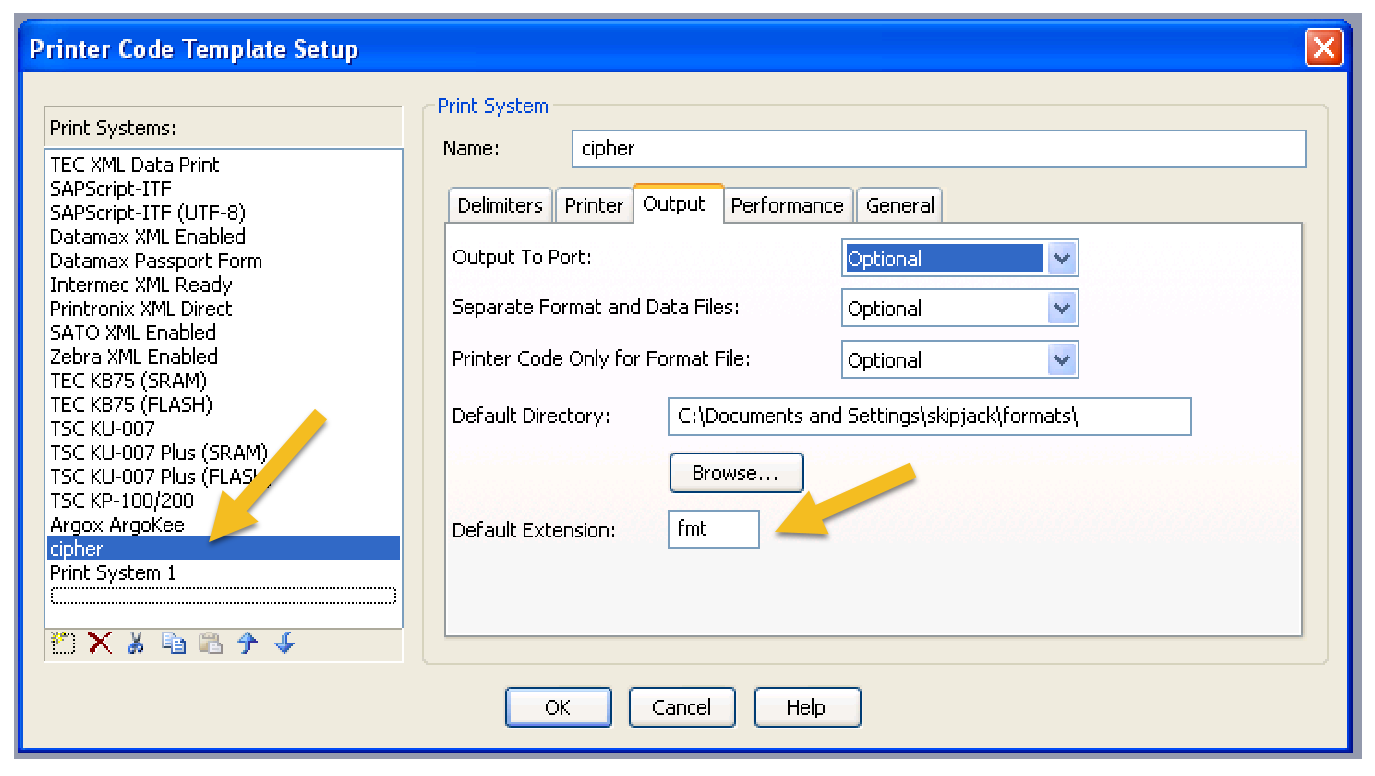
6. Enter the directory you want your source file to be saved to in the Default Directory
7. For the Default Extension enter fmt and press the OK button.
Video: