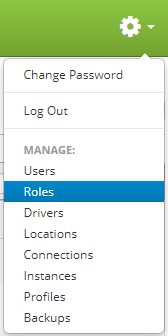
Roles are accessed by clicking the gear icon  in the upper right hand corner of the page and clicking on Roles.
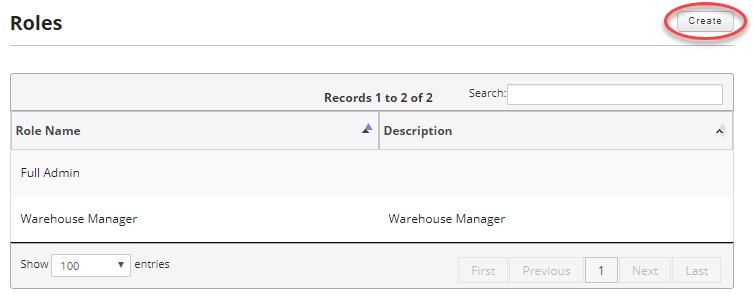
Once you are on the roles page, click on the Create button in the upper right hand of the screen to create a new role.
You must give the new role at least a name. Optionally you can give it a description and select permissions for the new role. Technically permissions are not required, but it would be useless if you didn't select any permissions.
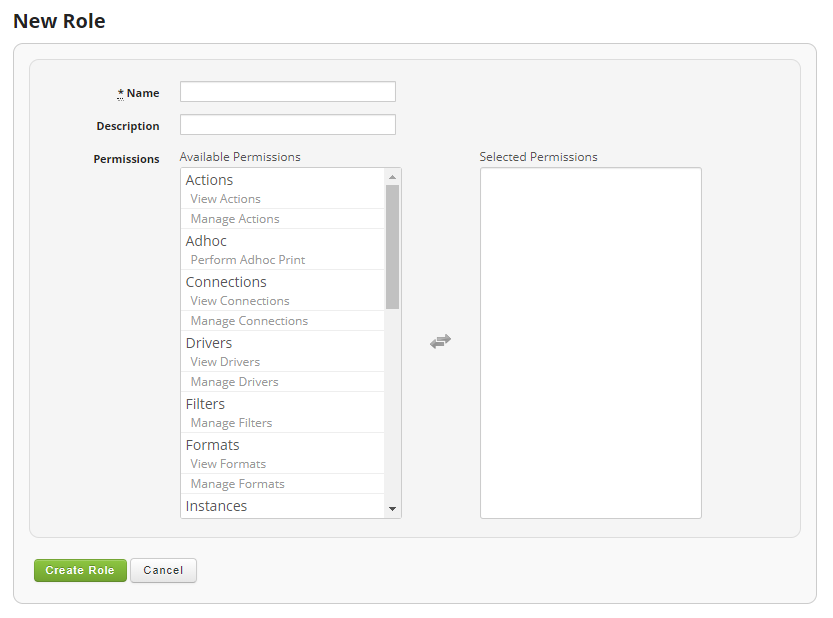
Fields:
- Name (Required): The name for the role.
- Description: Optionally provide a description for the role.
- Permissions: Click on the permissions listed under Available permissions to move them to Selected permissions and vice versa. You can click on the bold permission names to move the entire set of permissions for that group or click on an individual sub permission to transfer only that permission from the group.
Available Permissions:
| Permission Group | Permission |
Description |
| Actions | View Actions |
When selected, action definitions are displayed in view only mode |
| Manage Actions |
Allows full access to Actions. This includes inserting new actions and editing and deleting exiting Actions |
|
| Adhoc | Perform Adhoc Print |
Grants access to the label Adhoc print function, allowing users to print Adhoc labels. |
| Connections | View Connections |
When selected, connection definitions are displayed in view only mode |
| Manage Connections |
Allows full access to the Connections page, allowing users to created, update and test database connections. |
|
| Drivers | View Drivers |
When selected, driver definitions are displayed in view only mode |
| Manage Drivers |
Grants access to the Drivers page, allowing users to create new driver definitions, update existing definitions or deleting drivers. |
|
| Filters | Manage Filters |
When selected, this permission allows users to create, update or delete label filters. |
| Formats | View Formats |
When selected, format definitions are displayed in view only mode |
| Manage Formats |
Grants full access to create, update or delete label or action formats. |
|
| Instances | View Instances |
When selected, instance definitions are displayed in view only mode |
| Manage Instances |
Grans full access to create, update or delete instances. |
|
| Locations | View Locations |
When selected, location definitions are displayed in view only mode |
| Manage Locations |
Allows full access to create, update or delete locations. |
|
| Print Requests | View Print Requests |
When selected, completed print jobs are displayed in view only mode |
| Manage Print Requests |
Allows for the viewing label print print history for printer locations that are assigned to the user. This page displays print errors and a logs associated to a given print job. Users have the ability to delete or reprint labels as well |
|
| Printers | View Printers |
When selected, printer definitions are displayed in view only mode |
| Manage Printers |
Allows for full access to Printer setups. This includes the creation of new printers, editing and deleting exiting printers |
|
| Control Printers |
If selected the role will have access to start, stop or pause existing print queues, as well as redirect or delete jobs that are currently in the print queue |
|
| View Printer Redirects |
When selected, printer redirect definitions are displayed in view only mode |
|
| Manage Printer Redirects |
Allows for redirects to be setup prior to print jobs being stuck in the print queue. This is useful if a printer goes out for service |
|
| Profiles | Manage Profile |
Allows for full access to Profiles. This allows for any updates to the System Profiles page |
| Roles | View Roles |
When selected, role definitions are displayed in a view only mode. |
| Manage Roles |
Allows for full access to Roles. This included inserting new, editing and deleting exiting Roles |
|
| Services | View Services |
When selected, service definitions are displayed in view only mode. |
| Manage Services |
Allows for full access to Service setups. This included inserting new, editing and deleting exiting Services |
|
| Control Services |
This option allows access to start or stop an existing instance and location level services |
|
| Users | View Users |
When selected, user account definitions are displayed in view only mode |
| Manage Users |
If selected, the role will have access to be able to update or delete existing users as well as assigning roles and locations to existing users |
|
| Create Users |
If selected, the role will have the ability to create new user accounts |
Once you are satisfied, click the Create Role button to save your newly created role.