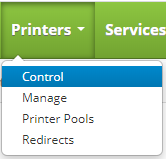
To control your printers, click on the Printers drop down menu on the main menu and click on Control.
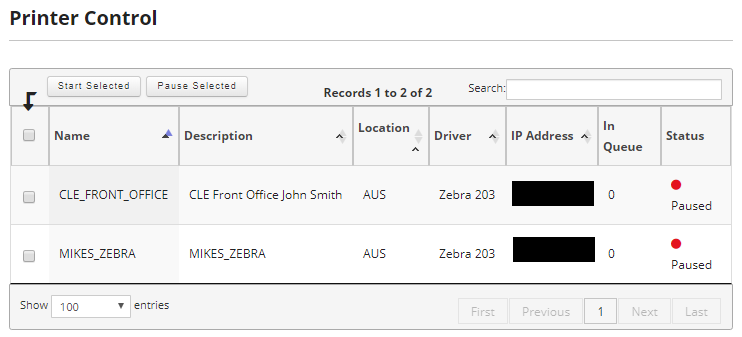
Once on the printer control page, you can control your printers in a number of different ways as well as get an overview of information on each printer. From this screen you can start and pause each printer's print queue, ping the printer, and test its connectivity.
Control Print Queues
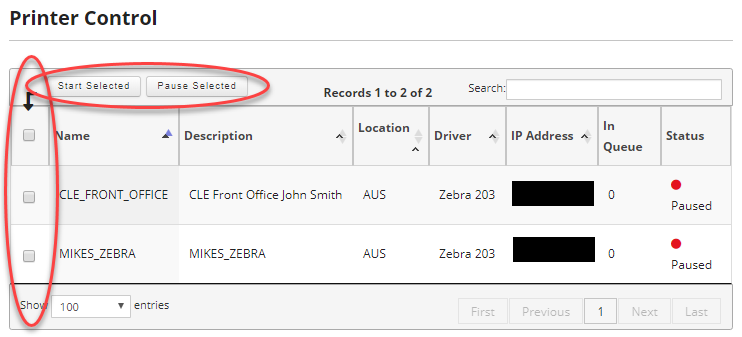
You can use the check boxes next to the printers and in the header to select printers for which you want to start or pause their print queues. Simply select the printers you want to start or pause the print queues for and click on either the "Start Selected" or "Pause Selected" buttons in the header of the printers.
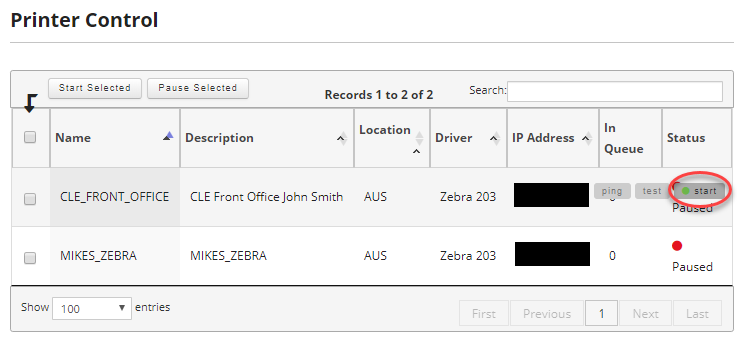
Alternatively, you can move your mouse over the printer you want to start or stop the print queue for and click on the "start" or "pause" button. If the printer queue is currently paused this button will read "start" and if it is currently started, the button will read "pause".
Ping the Printer
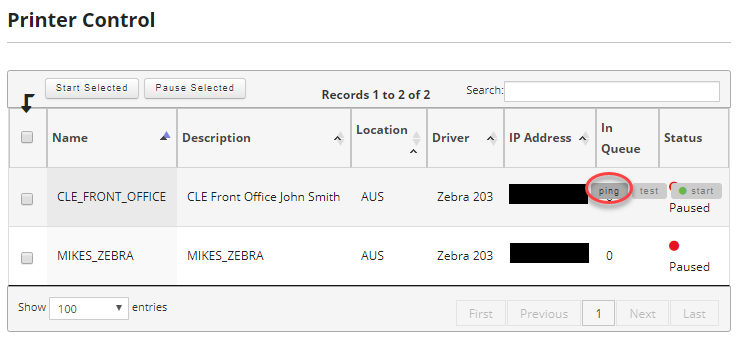
You can ping a printer as long as the "Ping Printer Allowed" checkbox is checked in Profiles. To ping the printer locate the printer you wish to ping and move your mouse over the printer to reveal the controls. Then click on the "ping" button.
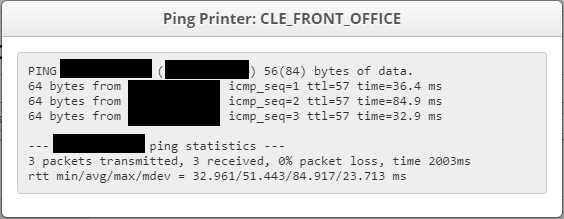
The results of the ping will be displayed in a pop-up.
Testing a Printer
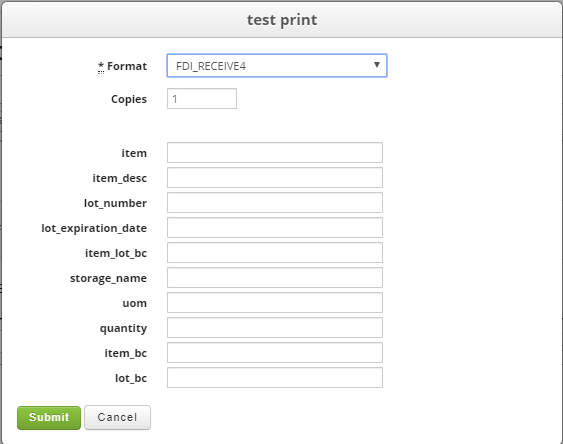
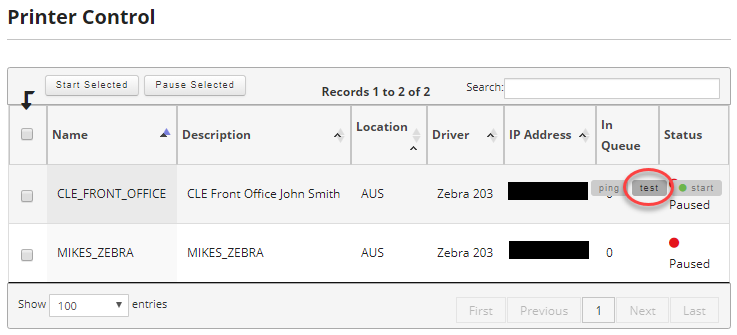
You can test print labels by moving your mouse over the printer to reveal the controls and then click the "test" button.
This will bring up a window where you can select the label format you wish to test along with the number of copies. Depending on the label format you select, the number of input fields will differ. Once you have entered the data you require into the label input fields, click on Submit to send a test label to the printer.