If you are looking for how to create a label, see the Creating Labels section.
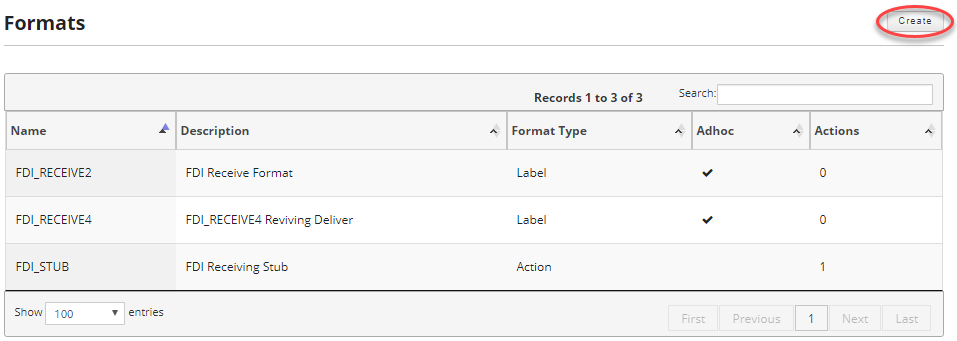
To create a new label format click on the formats link in the main menu.

Once on the formats screen click on the create button in the upper corner.
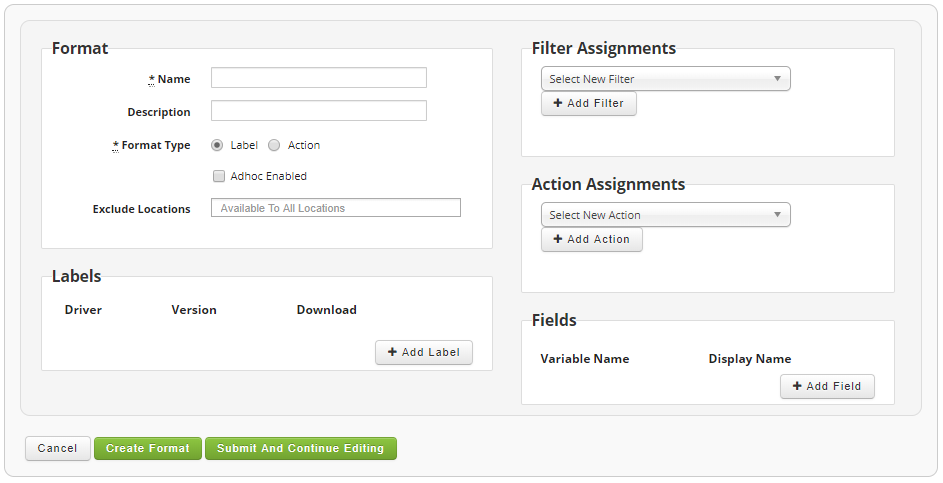
After clicking on the create button you will be taken to the following screen where you can create your label format. Label formats can either represent an actual label or an action. Additionally, you can further enhance what your label format can do by adding filters and actions to the format. Each section will be addressed in detail below.
Format
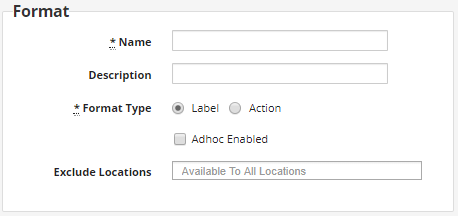
This is the primary definition for the label format. The name must match the label format that is sent in the label request XML. This also defines if the label format is defined as an actual label or an action. Label formats are always available to all locations within an instance, but you can optionally exclude some locations from being able to use a specific label format.
Fields:
- Name (Required): The name of the label must match the label format that is defined in the label request XML of a label request. If you are using seeded Oracle EBS label formats, then the label format name here must be the label format name in EBS. If you are using the Skipjack label PL/SQL API or generating the label XML yourself, then the label name must be defined as the format in the label XML.
- Description: An optional description for your label format.
- Format Type (Required): The label format can be either a label or action type.
A label type is directly associated with a physical label and allows you to associate an optional BarTender label format and source in the Label section. You are not required to this, but it is the most common use for a format type of label. If you choose not to do this you can use the format label type to perform other actions using filters or actions.
A action type doesn't allow you to fill in the label section and specifies this label format as an action only. In order for it to be useful you will need to associate a filter or action with the action format type. - Adhoc Enabled: Checking adhoc enabled will make this label format available for adhoc printing through the Cipher web interface.
- Exclude Locations: By default a label format is available to all locations within an instance. If you desire you can enter locations into this field that you want excluded. As you type a locations name it will auto complete for you so you do not enter a bad value.
Labels
This section is only available if your format type is set to label. It is not available for formats that are defined as actions. In order for a label format of type label to generate a physical label, it must have a BarTender format and print driver associated with the label.
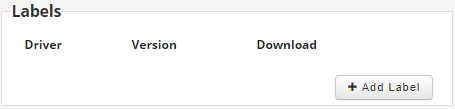
Clicking on the "+ Add Label" button will allow you to define the BarTender format with your label format.
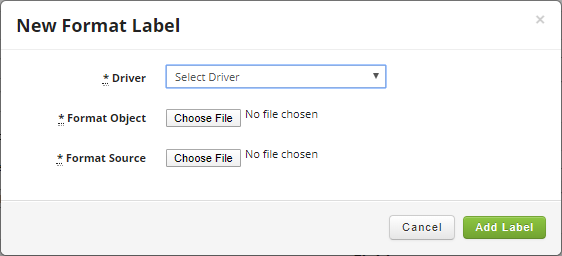
Fields:
- Driver (Required): Select the print driver that is associated with your BarTender label format.
- Format Object (Required): The exported FMT file from the BarTender label format designed for this label format. This is what allows you to print a label.
- Format Source (Optional/Required): The BarTender source BTW file. This is either optional or required depending on if the "Format Source Required" checkbox is checked on Cipher Profiles. Whether required or not, it is always recommended to upload the BTW file so that you do not loose it. There is no way to recover a BarTender label format from the exported FMT file.
Once satisfied click on the "Add Label" button to add the label format to the Labels section.
Filter Assignments
Use this section to assign optional filters to the label format. You can have as many filter assignments as you need associated with the label format. The drop down will show all of the filters that have been defined in Cipher. At least one filter must be created before you can select it for your label format.
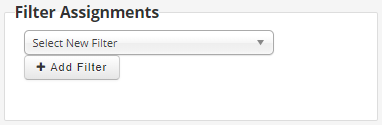
Once you have selected a filter from the drop down click on the "+ Add Filter" button to add it to your label format.
Action Assignments
Use this section to assign optional actions to the label format. You can have as many action assignments as you need associated with the label format. The drop down will show all of the actions that have been defined in Cipher. At least one action must be created before you can select it for your label format.
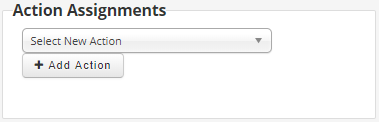
Once you have selected an action from the drop down click on the "+ Add Action" button to add it to your label format.
Fields
This section is where you assign the fields that will be used on the label format. It consists of the variable name which corresponds to the label request's XML variable name. The display name is used in the adhoc label request and label testing forms if you have defined this label format as an adhoc enabled label format.
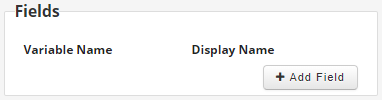
Click on the "+ Add Field" button to add a new field to your label format.
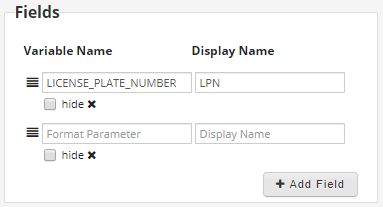
- Variable Name (Required): The variable name from the label request's XML.
- Display Name: The human readable display name for the variable. This is what will be displayed in the adhoc request and label testing windows. You do not have to populate this field. If it is not populated it will inherit the variable name.
- Hide: If hide is checked this variable will not be displayed on any adhoc request or label testing windows. This is useful when you are going to use an action to calculate the value of this field.

Once you are satisfied with your label format you can save it by clicking either the "Create Format" or "Submit And Continue Editing" button.