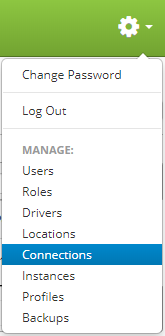
Connections are accessed by clicking the gear icon  in the upper right hand corner of the page and clicking on Connections.
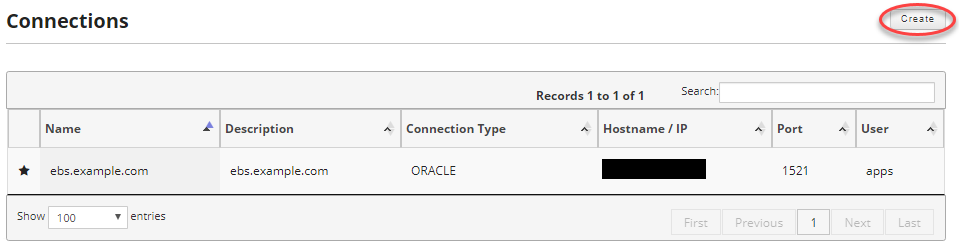
Once you are on the connections page, click on the Create button in the upper right hand of the screen to create a new connection.
Enter the following information to create a new database connection.
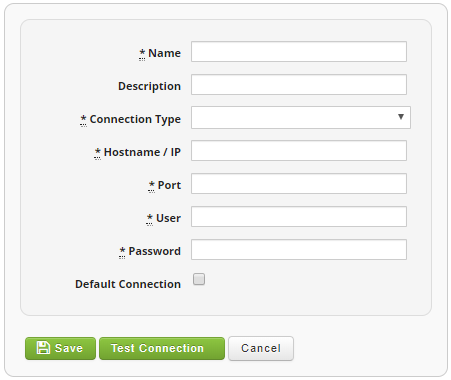
Fields:
- Name (Required): Database connection name used by the Cipher Actions definitions.
- Description: Human readable description of connection
- Connection Type (Required): Type of connection. Currently Oracle and SQL Server database connections are supported. If another database connection type is required please file a help desk ticket
- Hostname / IP (Required): IP address of the DB host or the host name address
- Port (Required): Database Host
- User (Required): Schema user name
- Password (Required): Schema password
- SID (Required): Database SID or service name. Used only by Oracle connection types.
- Database Name: Database name of the SQL Server. Used only b SQL Server connection types.
- Default Connection: If selected, this connection will be used for printer maintenance in EBS. This connection will default when creating new Cipher Actions. If using Cipher Freight, this connection will be used for the Ship Methods query.
You can test the information you have entered by pressing the Test Connection button.

Once you are satisfied, click the Save button to save your newly created database connection.
