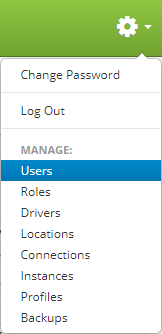
Users are accessed by clicking the gear icon  in the upper right hand corner of the page and clicking on Users.
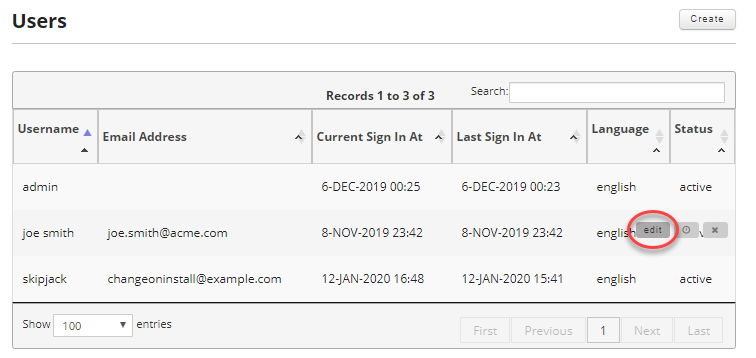
Once on the users page, find the user you want to edit and move your mouse over the user to reveal the controls. Then click the edit button.
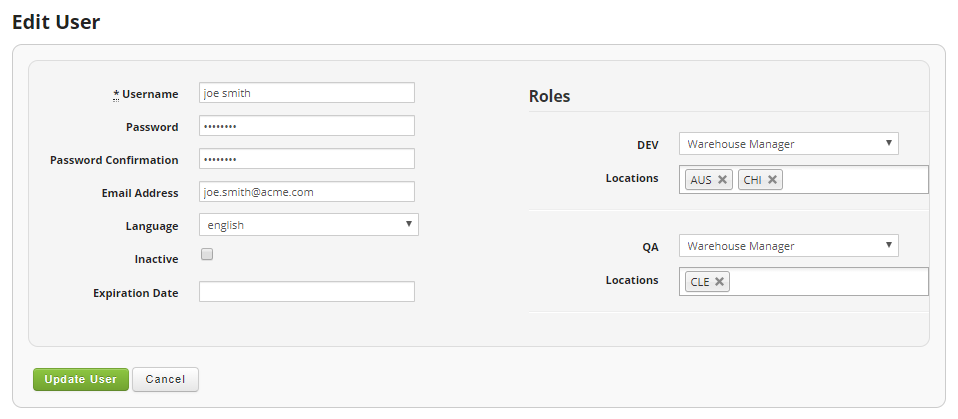
Just like in Creating a User, update the information you wish to change and then click on the "Update User" button to save your changes.
Fields:
- Username (Required): User login name.
- Password (Required): The desired user password. Passwords must be at least 8 characters long.
- Password Confirmation: Repeat the user password.
- Email Address: Optional e-mail address.
- Language: Desired language. At present the options are English, Spanish, Italian, and Japanese.
- Inactive: If you wish the user to be in active, you can check this check box.
- Expiration Date: Optionally set an expiration date for the user.
Roles
See the Creating a User article for more details on assigning roles and locations to a user for an instance.